Home Blog Page 175

How to backup your Android smartphone in a few simple steps

Smartphones have been powerful day by day, and due to this the amount of work done on the smartphones is increasing. With increasing, work comes increasing data. Also, with the glass and metal sandwich smartphones of today, damaging a smartphone is really easy. Also, desires to upgrade to the latest smartphone these days is also increasing. With that, the need of backing your phone is most crucial.

Without the backup, how will you show your 21-year-old his 3rd-grade photos to embarrass on his birthday party?

Whether you believe in backing up via a cloud software, computer or you are a root and backup the whole ROM kind of guy. We have a complete guide for you to help you do the same on your android smartphone.

Cloud Backup

If you have ever heard of backup on iPhone you have heard of seamless backup using the iCloud. While iCloud is limited to Apple device, Android also has a few tricks up its sleeves. With Google backup up services, you can backup almost all the data. When we say almost, we mean almost as backing up things like the call logs and SMS is still not available. Also, it's not a one-stop backup and needs several services and steps to complete it, unlike iCloud.

Google Photos

With Google photos, you can backup all your photos and videos in 1080p or lower format free for life. It is good for most of the peoples. Also, did we mention its free? Google photos are preinstalled on all Android smartphones. However, of your comes without it you can easily download it using the play store.

Once you have it downloaded and ready to go. Open the Google Photos App and using the three horizontal bars at the top, enter the menu. From the menu click Settings and then back up and sync. Once in the backup and sync settings, turn on the backup and sync switch and you are good to go. These will backup photos and videos in 1080p format. If you want to backup in a higher format, you can connect Google photos to backup on Google drive and backup in maximum quality if you like.

To do that, make sure the backup and sync are on. Then Click the upload size option and select original.

Google Drive

Once, the photos are backed up, you need to backup other things, like documents and more. You can do that via the Google Drive. Download and open the Google Drive app. It should be pre-installed on your device if not can be easily downloaded via the play store.


Once that's done, open the Google Drive App and using the three horizontal bars at the top, enter the menu. After that scroll down to Backups and click on it. Once that's done, click on start backing up and you are good to go.

Settings and App data

Open the settings app, and scroll down to backup and reset. Open its settings and turn it on. Once that's done, select a backup account and you are good to go.

Backing up to your computer

Backing up and restoring from the cloud requires significant internet charges. Also, most online backup services have only a small amount of free backup data. So using a personal computer seems more sensible. Also, this is pretty easy to do. And also the process is pretty much the same whether you’re a Mac or PC user. Mac users will need to download and install Google's Android File Transfer app.

Once you are ready to go, connect you smartphone to your computer using the USB cable. On Windows, open the device folder and on Mac, open Android File transfer app. Then copy and paste the files from your device to your PC as you wish.

Using Titanium Backup (Root)
Titanium Backup

For the most of the people, the above two methods are more than enough. However, rooting allows you to back up more data than anything else easily. However, please note that rooting to only backup your data is pointless. This method should be used if your device is already rooted.

  1. Download and open the app. It can be easily found on Google's Play Store.
  2. Tap the menu button in the top-right corner and select batch actions
  3. Select everything you want to back up. Titainium backup allows you to backup everything starting from wifi passwords to your apps data and more.
  4. You can also choose to backup the files to Dropbox or Google Drive. This will help you if you lose your phone.
  5. You can also opt to create a recovery compatible .zip backup file. You can use this file and Titanium backup to restore to a previous point if you wish to.

How to use Google Maps offline on your smartphone

Google Maps is a really useful and handy application when it comes to finding directions. Over the years, the application has got more features and works even better. One of the most underrated features of the Maps app is its Offline mode. Here's how you can setup and use the Offline mode in Google Maps on your smartphone.

Google Maps uses location services and Internet connection in order to show you directions. When we are headed for a long trip, the data connection might be unavailable at times. Also, data connection consumes a lot of battery. Downloading the particular are of a map can be really useful for trips and even local travelling.

Google Maps

Also Read: WhatsApp adds Group description, search participants and more options for Android

How to use offline mode?

  • Download and Install Google Maps application from the Google Play Store or Apple App Store
  • Fire up the Google Maps application on your smartphone
  • Swipe right or tap on the hamburger icon in the top left corner
  • Tap on Offline Maps


  • It will show you a list of already downloaded maps (if any). You can click on "Select Your Own Map" to select the area you want to download.

Google Maps Offline (4)

  • Pinch out to zoom out and bring more area into the box. If you want lesser area, you can pinch in to zoom in. The area you accumulate inside the blue box will be available when you are offline.

Google Maps Offline (1)

  • Once the download is complete, you can start using the Google Maps without the need of an internet connection.

By default, the application will use the internal storage of your smartphone to download the maps. You can change this by heading over to Offline Maps section and tapping on the Gear icon on the top right corner. Here you can switch your storage preference between Internal storage and SD Card.

Also, do note that you will need to keep the maps updated. According to the application, a map if not updated within 30 days will expire.

Xiaomi's new upcoming gaming smartphone Blackshark leaked with Snapdragon 845 and 8GB of RAM

Chinese Electronics manufacturer, Xiaomi is expected to launch a new phone. The upcoming expected phone by the company is an update to the Mi Mix series. While we are still waiting for the Mi Mix 2S which is slated for a March 27th launch. It looks like the company has more Snapdragon 845 phones in mind.

These new Snapdragon 845 phones will be Mi 7 and The mi Mi s for sure. Also, we have news of a gaming smartphone by the company. The smartphone is codenamed Blackshark.

Xiaomi's latest gaming smartphones has been making a lot of appearances lately. Last week it made an appearance of AnTuTu benchmark. The scores were amazing. Now the device has made an appearance on the GeekBench database. The device is dubbed as "Blackshark SKR-A0" on the listing.

Xiaomi Blackshark leaked on GeekBench

Performance numbers of the Blackshark

The specification of the device is consistent with the results on the AnTuTu database as well as the GeekBench database. The setup is also quite similar to the Mi 7 and the Mi Mix 2S. That is Qualcomm Snapdragon 845 coupled with 8GB of RAM. The benchmark further reveals a single core score of 2,452 and a multi-core score of 8,452. These scores are surprisingly high even for the Qualcomm Snapdragon 845. This means the company has something else under the hood for the Blackshark.

What makes Blackshark Special?

According to the sources involved in the development of the Blackshark claim, they know why. They claim that Xiaomi is able to achieve this feat with new design techniques. This is the usage of the aviation-grade cooling solution. This keeps the CPU and GPU from thermal throttling under load. It is a known fact that all electronics perform low due to thermal throttling under load.

The recent AnTuTu listing revealed some of the device specifications. These include a 2,160x1,080 pixel resolution display. Also, the device packs Android 8.0 out of the box. The Blackshark also managed to get an AnTuTu score of 270,680.


The Blackshark smartphone by Xiaomi will take on the Razer Phone by Gaming peripherals maker Razer.

Here's how to avail the 70 percent buyback offer on Samsung Galaxy S9+

Samsung Galaxy S9 and S9+ have launched a few days ago and finally went on sale officially on March 16. If you are looking out for one, Reliance Jio has brought up an offer for you. The telecom operator is offering 70 percent buyback offer on the purchase of the 256GB variant of the Samsung Galaxy S9+.

How to avail the offer?

First of all, you will need to purchase the Samsung Galaxy S9+ 256GB via Jio.com, Reliance Digital or Jio Store. The 256GB variant of the Samsung Galaxy S9+ is available at a price of Rs. 72,900. To avail the offer, Jio users will need to make a cumulative recharge of minimum Rs 2500 within 12 months. The recharge can include any of the Reliance Jio's plans.

Samsung S9+ Jio

The users can also opt-in for Reliance Jio's Galaxy Club offer. The Galaxy Club by Jio offers 1TB of 4G data at Rs. 4,999 special annual plan. The annual plan also includes unlimited calls and SMS for a year.

Also Read: How to Factory Reset your Samsung Galaxy S8 or S8 Plus

Samsung Galaxy S9 starts at a price of Rs. 57,900 for the 64GB variant and the 256GB variant is priced at Rs. 65,900. The 64GB and 256GB variants of the Samsung Galaxy S9+ are priced at Rs. 64,900 and 72,900 respectively. All the variants of the smartphone are available at Jio.com, Reliance Digital and Jio stores. Colour variants of the smartphones include Lilac Purple, Coral Blue and Midnight Black.

Samsung Galaxy S9 features a 5.8-inch display while the S9+ sports a 6.2-inch display. Both the smartphones have Super AMOLED displays with 1440x2960 pixels resolution and an 18.5:9 aspect ratio. The smartphones are powered by the Exynos 9810 Octa-Core processor. The smartphones run on Android 8.0 Oreo out of the box.

How to Factory Reset your Samsung Galaxy S8 or S8 Plus

It has been over a year since Samsung launched the Samsung Galaxy S8 and S8 Plus. Both the smartphones now have successors, namely Galaxy S9 and S9+. The Galaxy S8 and S8+ recently received the Android 8.0 Oreo update in countries like India and UAE. If you are a Galaxy S8 user and facing some issues after the update you can go ahead and follow these steps to factory reset your smartphone.

Note that Factory Reset will erase all the data from your smartphone bringing it back to look fresh like you took it out of the box. Samsung smartphones also tend to get a bit slow overtime and a Factory Reset can definitely solve that too.

Samsung Galaxy S8 Android Oreo

There are two methods to Factory Reset your Galaxy S8. In both the methods you will need to take a backup of all your important data.

How to Factory Reset Samsung Galaxy S8?

  • First of all, you will need to backup all your important data to your computer or the Cloud.
  • Head over to Settings > General Management > Reset
  • Here tap on Factory Data Reset and then hit Reset

  • You will need to enter your PIN, Pattern or Password (if any) to verify.
  • Now just tap on the Delete All option and the Reset process will start
  • After a couple of minutes, your Galaxy S8 will reboot and you will have a brand new Galaxy S8 in your hands (at least from the software side).

Also Read: Samsung Galaxy S8 and S8+ now run on Android 8.0 Oreo, Here’s the full changelog

There is also another way to reset your Samsung Galaxy S8. To hard reset your Galaxy S8 you will need to enter into Recovery Mode. Also, we recommend removing your microSD card (if any) before starting with the Factory Reset procedure.

How to reset Samsung Galaxy S8? (Recovery Mode)

  • Power off your Samsung Galaxy S8 by holding down the Power Button and tapping on Power off twice.
  • Now enter Recovery Mode by holding down Volume Button + Bixby Button + Power Button at the same time for a few seconds. As soon as you see something on the screen, you can stop pressing the buttons.
  • Now it will show a blue screen with "No Command" written. Don't panic, that's normal. Give it a couple of seconds to load.
  • In the recovery mode, scroll down to "Wipe Data/Factory Reset" by using the Volume Down key and hit the Power Button
  • Now confirm that by scrolling down to "Yes" and press the Power Button.

WhatsApp adds Group description, search participants and more options for Android

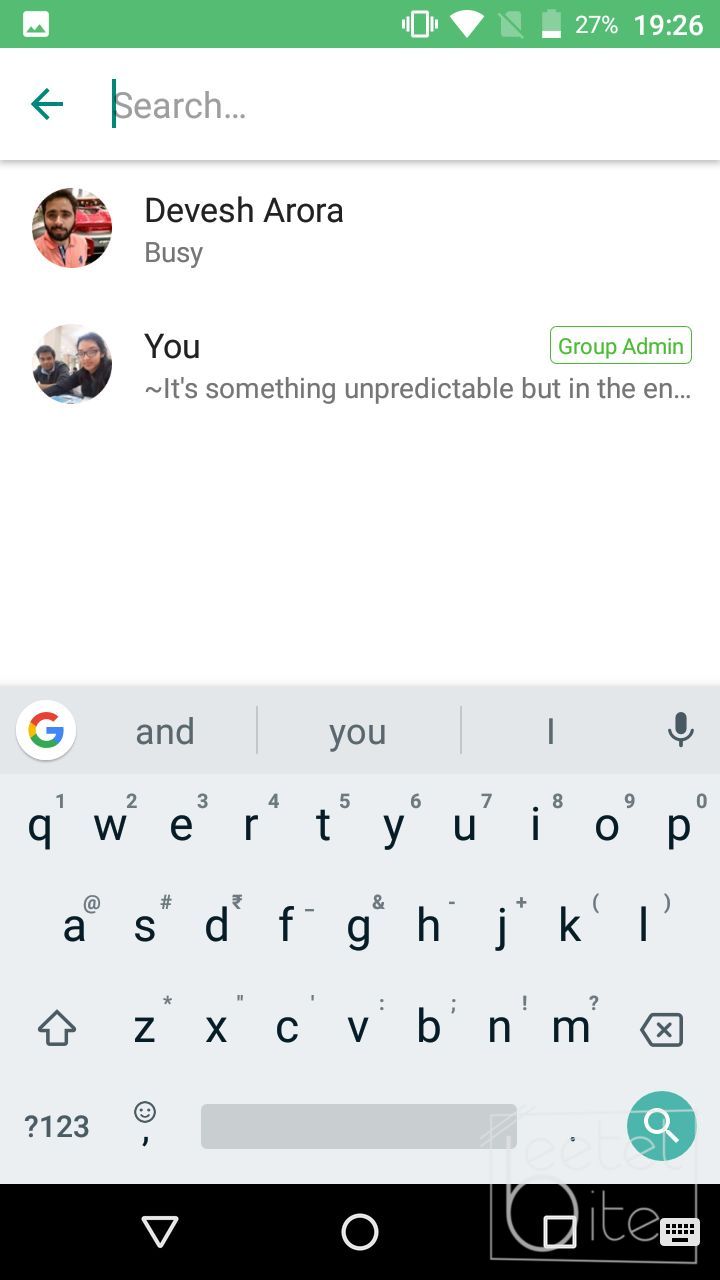
Social Media Giant, WhatsApp recently released a slew of new updates. These new updates have added the ability to add a group description, search for group participants directly from the Group Info screen. Apart from that, it allows to seamlessly switch between voice and videos calls now. However, these features are only for Android App only.

whatsapp

Recently, the new Group Description feature was spotted in Beta. It was spotted in Android Beta app and Windows Phone Beta app. The third new feature, seamlessly switching between Voice and Video calls is only available on the iOS version of the app already.

What are these new features by WhatsApp?

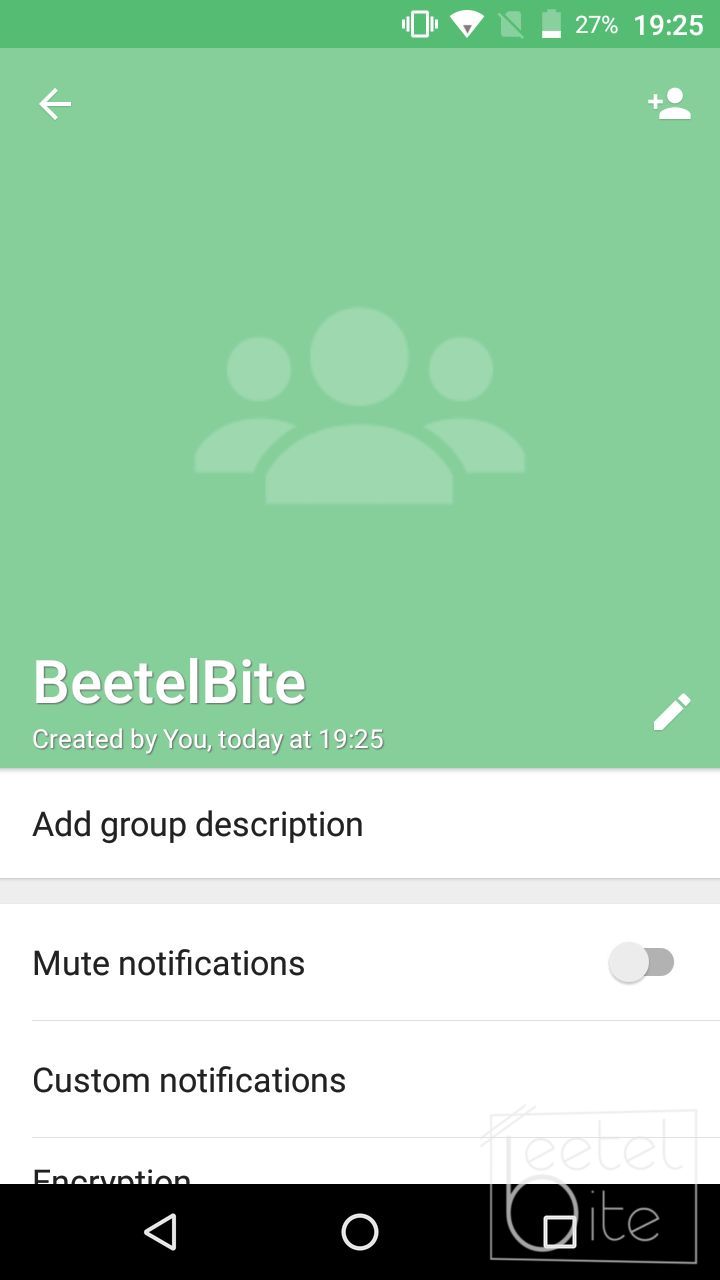
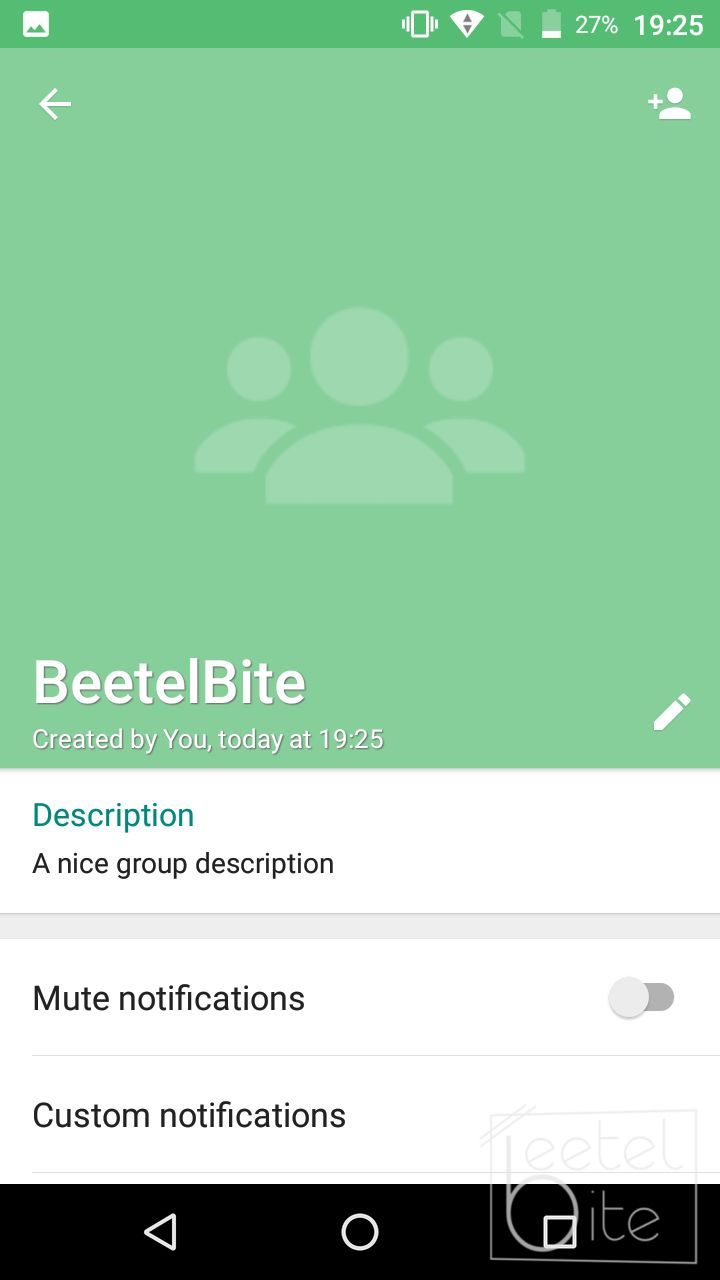
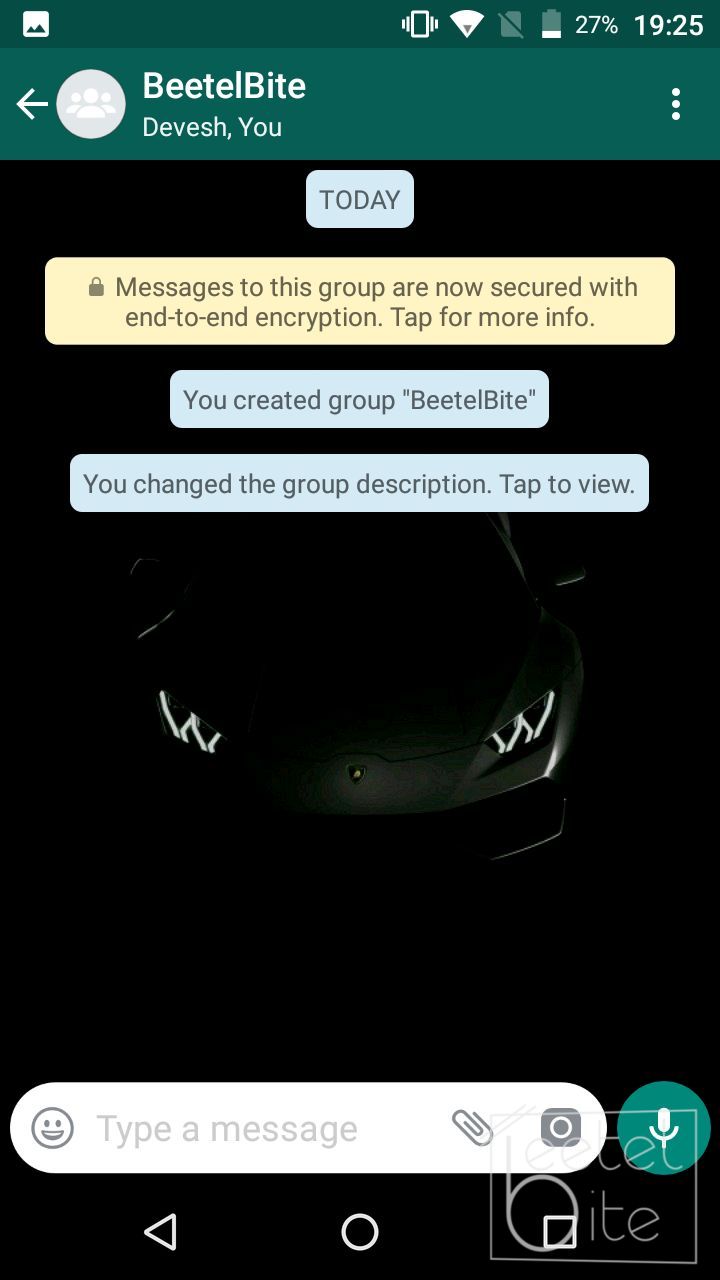
The applications new Group Description feature lets the user add Group description. This description can be used to provide the member's information about the group. This group information can be simply added by tapping on the Group description option below the group picture. When a group description is added or updated, a notification comes in the group. This is just like when the users change the group name or the profile picture. Participants can also click on it to open the group description and read it at once. Anyone can add the group description. This option is not only for the admins but all participants.

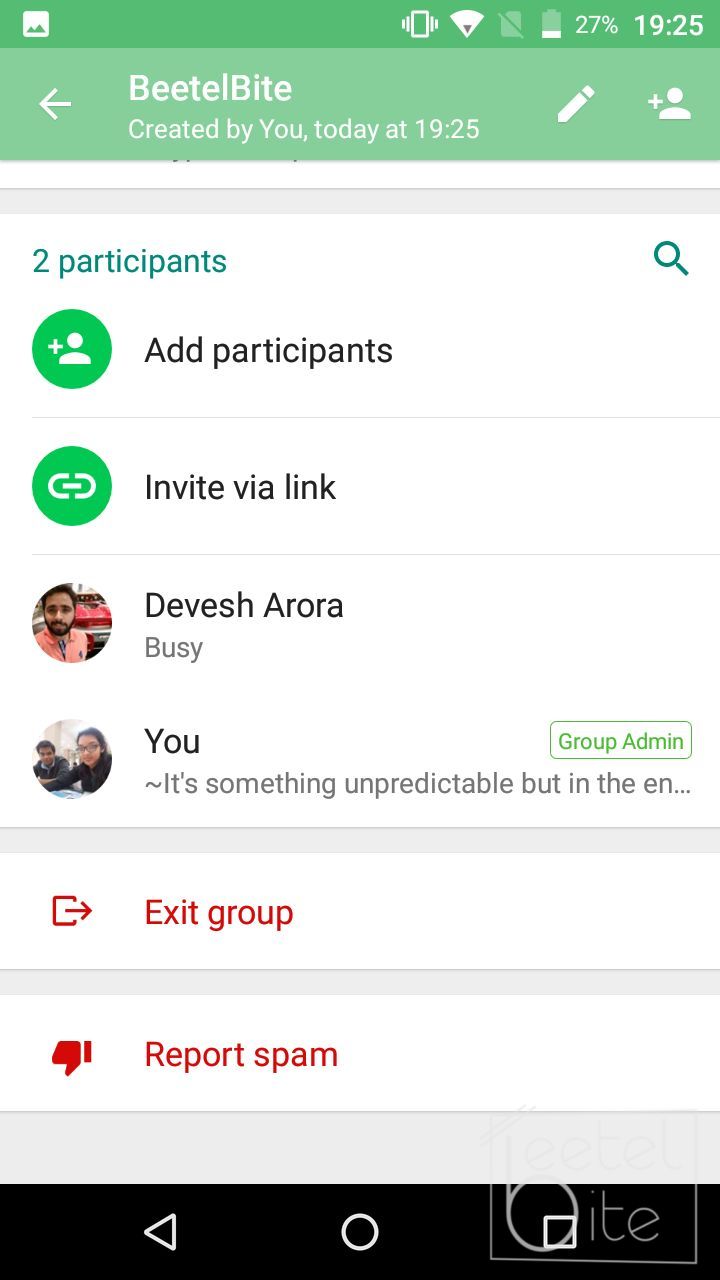
WhatsApp for Android now also participants of a group to search for other participants in the group using the Group info page. The final feature is the ability to switch between voice and video call on the go seamlessly. During a voice call, any of the participating users can click on switch to video call button to switch seamlessly on the go.

Also Read: List of all the smartwatches eligible for Wear OS update out

Other recent features in WhatsApp

Facebook-owned giant also recently updated the deadline for Delete for Everyone button in a group or private messages. The limit was updated to 1 hour 8 mins 16 seconds from the earlier 7 minutes. It is already live on all platforms.

List of all the smartwatches eligible for Wear OS update out

Google recently put out a blog post sating many things. One of them was it is rebranding the Android Watch OS. The blog post said that the company is rebranding the Watch OS to Wear OS. With that, they are also launching the new updated software. The Wear OS contains tons of new features compared to Watch OS. Now, the company has confirmed all the wearable devices eligible for the Wear OS update.

Smartwatches getting Wear OS update

List of smartwatches updated to Wear OS

Basically, all the smartwatches that have been or had a planned update to Android 8.0 Oreo Watch OS are on the list. So basically Wear OS is the updated Android 8.0 Watch OS.

Also Read: Google Assistant can now speak and understand Hindi

  • Casio PRO TREK Smart WSD-F20
  • Casio WSD-F10 Smart Outdoor Watch
  • Diesel Full Guard
  • Emporio Armani Connected
  • Fossil Q Control
  • The Fossil Q Explorist
  • Fossil Q Founder 2.0
  • The Fossil Q Marshal
  • Fossil Q Venture
  • The Fossil Q Wander
  • Guess Connect
  • Gc Connect
  • Huawei Watch 2 (both cellular & non-cellular versions)
  • Hugo BOSS BOSS Touch
  • Kate Spade Scallop
  • LG Watch Sport
  • LG Watch Style
  • Louis Vuitton Tambour
  • Misfit Vapor
  • Michael Kors Access Bradshaw
  • The Michael Kors Access Dylan
  • Michael Kors Access Grayson
  • The Michael Kors Sofie
  • Montblanc Summit
  • Movado Connect
  • Mobvoi Ticwatch S & E
  • Nixon Mission
  • Polar M600
  • Skagen Falster Smartwatch
  • TAG Heuer Connected Modular 41
  • TAG Heuer Connected Modular 45
  • Tommy Hilfiger 24/7 You
  • ZTE Quartz

New features expected in Wear OS

However, it must be noted that this update won't bring any new features. This will just change the name of the operating system on your Watch. Also, you will also get an update on the app on your smartphone also, changing its name. Except for a new logo an a new name, everything will remain same.

Also, keep in mind, the exact date and time of this update push will be determined by your watch manufacturer and not Google.

Infinix Hot S3 receives Face Unlock feature via an OTA update

Infinix has started rolling out the Face Unlock feature for the Infinix Hot S3 via an OTA (Over-the-Air) update. Infinix Hot S3 is the first smartphone from the company to receive the much-awaited feature. The Face Unlock feature will make use of the front camera for Facial Recognition in order to unlock the smartphone.

Since Apple introduced the FaceID feature, many Android smartphone manufacturers are introducing a face unlock feature on their smartphone. If you have the Infinix Hot S3, you will soon receive a notification of the update. However, you can also manually check for any available updates. Head over to Settings > About Phone and tap on System update. Click on check for updates and if there are any updates available, hit download.

Infinix Hot S3

How to setup Face Unlock?

Once updated, you can now setup Face Unlock on your Infinix Hot S3. To setup, head over to Settings > Security and location. Here you will find a Face ID option. In the Face ID option, the smartphone will scan your face via the front-facing camera. Once the setup process is completed, you can use the Face Unlock feature to unlock your smartphone.

Also Read: Top 5 reasons to buy the budget-oriented Xiaomi Redmi 5

Infinix Hot S3 Specifications

To recall, the Infinix Hot S3 features a 5.65-inch IPS LCD display. The display comes with a resolution of 1440x720 pixels and an 18:9 aspect ratio. The smartphone is powered by the Qualcomm Snapdragon 430 SoC clocked at 1.4GHz. The device is available in two variants, one with 3GB of RAM and 32GB of internal storage.  There is also a 4GB RAM variant that comes with 64GB of onboard storage.

Infinix Hot S3 runs on XOS Hummingbird 3.0 UI based on Android Oreo. Under the hood, there is a 4,000mAh battery. There is also a fingerprint scanner located at the back of the handset.

Xiaomi introduces Mi Exchange on Mi.com in India: Here's how to use it

Xiaomi has finally introduced the Mi Exchange, an exchange program by the company in India. The Mi Exchange allows users to trade-in their old smartphones to purchase a new Xiaomi smartphone. Xiaomi will provide exchange coupons in exchange for your old smartphone. The exchange coupons can then be used to claim discount on a new Xiaomi smartphone.

Xiaomi's all-new Mi Exchange program is applicable to a wide range of smartphone companies. The smartphone brands include Samsung, Google, Huawei, Sony, Asus, Lenovo, Moto, LeEco, Micromax, Gionee, Oppo, Vivo, HTC, and OnePlus.

Xiaomi Mi Exchange

How to use the Mi Exchange?

  • Head over to Xiaomi's Mi Exchange page
  • Now click on "Evaluate My Phone" in order to see how much you can get for your old smartphone
  • Here, Select the brand and model of the smartphone you want to exchange. You can also use the "Search Model" option to easily search for the smartphone
  • Enter the IMEI number of your smartphone and agree to the terms and conditions. Now, tap on "Get Exchange Coupon."
  • You might need to login to your Mi Account. In case you don't have one, you will need to create one.
  • Voila! Your Exchange coupon is now generated

You can now purchase a new Xiaomi smartphone and get a discount using the coupon. At the time of delivery, your old smartphone will be picked up.

What do we feel about the Mi Exchange program?

Xiaomi's Mi Exchange program brings great discounts and hassle-free exchanges. However, we did notice that you can get better offers by not using Mi Exchange. The Mi Exchange was started in collaboration with New Delhi-based Cashify. So we decided to check the value of our Samsung Galaxy S8 on Mi Exchange as well as on Cashify.

We discovered a price difference of a whopping Rs. 7,500 between the Mi Exchange and Cashify's offering. So we would highly recommend checking out Cashify and other services before heading over to Mi Exchange. Yes, Mi Exchange reduces the hassle, but for a price difference of Rs. 7,500 a little bit of hassle is acceptable.

Sometime you might get a better deal on Mi Exchange depending on the smartphone you are trying to sell. It also highly depends on the condition of your smartphone and the accessories you have with it.

Top Five alternatives to the Xiaomi Redmi 5

Chinese Electronics manufacturer, Xiaomi has finally added a new smartphone to their series. The company recently launched their budget-friendly Xiaomi Redmi 5 in India. The smartphone is being touted as a “Compact Powerhouse” by the company. The Redmi 5 is launched in order to fill the gap between the Redmi 5A and the Redmi Note 5. The highlights of the smartphone include it’s 18:9 display up front at a cheap price.

As far as the specifications are concerned, the Xiaomi Redmi 5 is powered by the Qualcomm Snapdragon 450 SoC. The smartphone features a 5.7-inch IPS LCD display with a resolution of 720×1440 pixels and an 18:9 aspect ratio. The device comes in three variants ranging from 2GB RAM to 4GB RAM. All of this is backed by a 3,300mAH battery.

1. Xiaomi Redmi Y1 and Y1 Lite

Redmi Y1 and Y1 Lite

One of the best alternatives to the Redmi 5, is the company's own Redmi Y1 and Y1 Lite. The Redmi Y1 features a 5.5-inch IPS LCD display with a resolution of 1280×720 pixels. The smartphone is powered by the Qualcomm Snapdragon 435 SoC coupled with Adreno 505 GPU. The smartphone comes with 3GB RAM and 32GB storage or 4GB RAM and 64GB storage variants. There is a 3,080mAh battery backing up the device.

The Redmi Y1 Lite is powered by the Qualcomm Snapdragon 425 processor coupled with 2GB RAM and 16GB of storage. The processor is a 64-bit processor, so expect better software computing. The smartphone features a 5.5-inch display with a resolution of 1280×720 pixels.

You lose the 18:9 aspect ratio display here, but gain at camera performance and price.

Also Read: Xiaomi launches the MIUI 9 and Redmi Y-series in India: Everything you need to know

2. 10.or E

10.or E

The 10.or E is powered by the Qualcomm Snapdragon 430 SoC coupled with the Adreno 505 GPU. The smartphone sports a 5.5-inch display with a resolution of 1080×1920 pixels. The phone is available in two variants, one with 2GB of RAM and 16GB of internal storage and another with 3GB of RAM and 32GB of onboard storage. Under the hood, there is a 4,000mAh battery powering up the device.

What you lose is the 18:9 aspect ratio display but what you gain is the massive bump in battery and the pure stock Android experience.

Also Read: 10.or E review: Making the budget-smartphone competition tougher

3. Micromax Canvas Infinity

Micromax Canvas Infinity

Micromax Canvas Infinity has a 5.7-inch 720x1440p HD IPS LCD display. It is powered by a Qualcomm Snapdragon 425 64-bit 1.4GHz Processor coupled with a 3GB of RAM and 32GB of storage. All of this is backed up by a 2,900mAH battery.

Except for a great camera and a little more expensive price, the phone has nothing to lose on the Redmi 5.

Also Read: Micromax Canvas Infinity Review: An affordable infinity display phone?

4. Infocus Turbo 5 Plus

Infocus Turbo 5 Plus Android Nougat

The Infocus Turbo 5 Plus comes with a MediaTek 6750 coupled with 3GB of RAM. The device also comes with a 5.5-inch display. Whats special about this device is its 4,850mAH battery. If that wasn't enough, it also sports a dual camera setup at the rear.

What this loses is the 188:9 aspect ratio display in favor of the dual camera and the massive battery.

Also Read: Infocus Turbo 5 Plus In-Depth Review: Are the dual cameras any good?