Home Blog Page 132

Top 5 reasons why not to buy the Samsung Galaxy Note 9

Samsung Galaxy Note 9
The Galaxy Note 9 deserves to be bought, but not before a proper assessment.

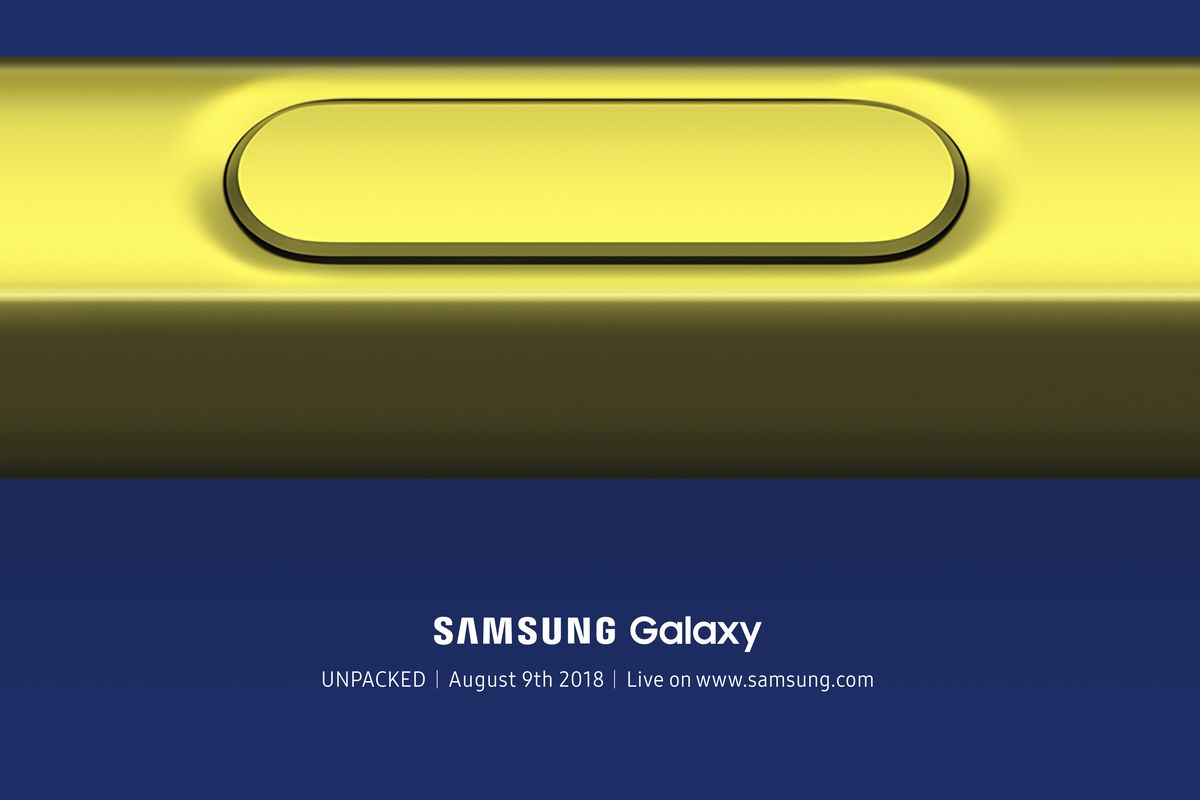
Samsung Galaxy Note 9 was unveiled yesterday at the Samsung Unpacked event. The Note 9 is one of the most anticipated smartphones of 2018. With the specifications it packs, it can easily get the crown of the best smartphone of 2018. However, something is good doesn't mean you should buy it immediately. So here are 5 reasons why we think you should hold off buying the Samsung Galaxy Note 9.

Price

The Samsung Galaxy Note 9 is quite expensive. The base price of the Samsung's new flagship will start at $999.99 with 6GB RAM and 128GB storage. While the 512GB storage and 8GB RAM variant will cost $1249.99. That's more expensive than the iPhone X, making it one of the most expensive brand-new smartphone out there. Sure, it deserves that price but not everyone can afford it. You should either wait for a sale or a price drop unless you can spend that much amount of money on a smartphone.

Pixel 3 on the way

Pixel 3, Google, Render
The Pixel 3 rumours and renders give us the hope that it will beat the Note 9 (Photo: Phone Designer)

We all know how great the Pixel 2 XL was for a smartphone. It packed everything we want from a smartphone except the headphone jack of course. We also know the Pixel 3 and the Pixel 3 XL is on the way. They surely will turn out to be better smartphones than the Note 9. If not, Note 9 will get a price drop to sweeten the deal.

iPhone X Plus on the way

This might seem a little bit ridiculous, however, the latest generation of iPhones are around the corner. They might be better than the Galaxy Note 9 and cost around the same. Also, even if Note 9 is a better smartphone this will surely impact the price of the Samsung flagship making it much affordable for people interested.

Galaxy Note 8

Samsung Galaxy Note 8 camera setup
The Samsung Galaxy Note 8 still one of the best smartphones out there. It is also cheaper than the Note 9.

The Samsung Galaxy Note 8 costs $900 approx depending on from where you buy it and how you buy it. With the Oreo update, it has got many of the features like the Color Lens. After the Note 9 hits the selves, the price of the Note 8 will further fall. This will make the Galaxy Note 8 a better option price: functionality wise.

Wait for the device to settle down

We all knew how it went with the Samsung Galaxy Note 7. The smartphone literally exploded in people pocket. That made it extremely dangerous. The Galaxy Note 8 was safe, but who knows what can happen with the Galaxy Note 9. We advise you to wait for few months and see how the Note 9 turns out. If it turns out fine, then it will be safe to purchase.

How to Install Lineage OS on your smartphone

Lineage OS is one of the most customizable OS in the market right now.

Cyanogen OS was one of the most customizable Android-based operating system available in the market during its reign. OnePlus launched the OnePlus One running Cyanogen OS back in 2014 and it changed the way the world looked at mid-segment phones and our expectations from premium smartphones. One of the things that made that smartphone so good was the Cyanogen OS and its ability to highly customize the user experience. After Cyanogen Inc. shut down its operation back in 2016, Lineage OS took over all their work.

This makes Lineage OS one of the most preferred custom ROM to be used by enthusiasts. The installation process of most of the custom ROMs is almost the same, for the sake of this article, we will be using Lineage OS 15.1 and our test device is Google Pixel 1st gen.

Disclaimer: We are not responsible for bricked devices, dead SD cards, thermonuclear war, or you getting fired because the alarm app failed. Please do some research on custom ROM flashing and side-loading ROMS. YOU are choosing to make these modifications and any result positive or negative, you will be responsible.

Installing Lineage OS 15.1 on Android Smartphone

  1. The first thing you will need is to get your bootloader unlocked. For that first, enable developer options by tapping on the Build number in system settings 7 times, this is the same for all Android devices. After that, you need to turn on the OEM unlock option in the Developer Options if your device has it.
  2. Now you need to reboot to fastboot. That can be done using ADB on your computer or using your phone itself. Remember, unlocking your bootloader will wipe all your data, so make sure to keep a backup before doing this. If you have ADB installed on your pc, type the command 'adb reboot bootloader' or shutdown your smartphone and press and hold the power + volume down button.
  3. Once you are in bootloader, you need a to connect your smartphone to a pc and use the fastboot tools that come bundled with ADB tools to unlock the bootloader. Type the command 'fastboot devices' to check whether your device shows up or not.
  4. If your device shows up correctly, then you need to type 'fastboot flashing unlock' and this will unlock your bootloader. However, please note that this command might be different for your device. If your device doesn't show up in fastboot device, try reconnecting your phone with the pc.
  5. Once your smartphone is set up back to normal, you need to repeat step 1-3 to get back in fastboot menu with bootloader unlocked.
  6. Now you will need a custom recovery for your smartphone. We are using a TWRP here. Download the TWRP recovery file for your smartphone and keep it in the same folder that you installed ADB tools in.
  7. After that, we would advise you to keep the operating system image for your smartphone downloaded and handy in your PC.
  8. Once that's done, you need to type the command 'fastboot boot TWRPxxxx.img' where TWRPxxxx is the name of the file you downloaded in step 6.
  9. After you have booted into TWRP, you need to move the operating system you downloaded in step 7 to your pc using the command 'adb push filename.zip/sdcard/' for by using copy past method if your device shows up in the file manager.
  10. Once that's all ready, go to wipe option, select the cache and Dalvik cache option along with the system option. And swipe right to wipe them out.
  11. Then you need to go back, press the install button and then navigate to the location your file from step 7 is saved and then press install. After the installation is complete, press the wipe cache and Dalvik cache and swipe right to confirm.
  12. Once that's gone go back and press reboot, and then press system.
  13. Voila, you would be now booting up in your new operating system.

JVC XS-XN511A 5.1 Bluetooth Speaker Review: A speaker that can jazz up your small party

The JVC XS-XN511A 5.1 Bluetooth Speaker can jazz up your small party

JVC the Japanese audio brand recently launched the JVC XS-XN511A 5.1 Bluetooth Speaker in India. The XS-XN511A is the company's first 5.1 surround channel Bluetooth speaker. With the LED lights embedded in the centre console is a good party speaker also. The company has priced the speaker at Rs. 11,999 and is available on Flipkart and Croma. Flipkart is currently selling the speaker at Rs 6,499, which even before finishing the review we are telling you it is a good deal.

When the speaker arrived at our office, we were a bit surprised seeing the small size of it, which we thought might not be able to deliver the quality of sound the company was claiming. However, when we initially fired up the speakers it was evident that they do pack a big punch. Let us find out how the speakers are able to perform in real life and were they able to stand our testing procedure.

JVC XS-XN511A: Design and Specifications

The JVC XS-XN511A sports a honeycomb-like design and is a good looking speaker set overall. The main sub-woofer console is large enough to put under a television while at the same time is able to deliver enough bass to move things inside the room and five speakers can be placed around the room.

The speakers have a total output power of 135W RMS, these include the 6.5-inch 50W sub-woofer and five 3-inch 15W satellite speakers. The speakers have a response frequency of 40-20,000Hz and a digital amplifier to provide balanced sound profiles. The device features a USB port, AUX-in, Bluetooth, FM Radio, and an SD card slot. The company has claimed that the speaker is able to deliver adrenaline-charged bass along with dynamic treble.

Also Read: Soundbot SB574 vs Soundbot SB1023 Bluetooth speakers comparison: Looks vs Features?

JVC XS-XN511A: Performance

The JVC XS-XN511A also comes with a remote to control volumes of each speaker

The JVC XS-XN511A is a decent sounding speaker system that is able to fill up a large room with many people. The device is an overall good performer and considering the price you might not be able to find a good enough speaker system setup that gets close to this one. The vocals in most situations were clear, the lows and the mids were also good. However, during the highs, the speaker set did struggle a bit. The device with maxed out bass levels was giving out a crackling noise, which did not occur which the bass levels were taken to 75 percent. When listening alone to the speakers at full volume they were giving out a great output and were able to fill the whole room with a set of vibrations that shook the windows a bit.

Also Read: Sony’s 2018 Wireless Party series wireless speakers Hands-on Review

JVC XS-XN511A: Verdict

The LED lighting looks attractive

Considering that this speaker set was able to exceed the expectations we had for a brand like JVC, we were simply compelled to directly recommend it to anybody. However, running the complete list of our tests we were able to garner the information that though this is an amazing speaker set for the price it is available online, however, the fact remains that this will not cater to each and everyone. Overall the device is great and will fit most of the people's need, but if you are a bass head we recommend you to steer a bit off of it and try purchasing a bigger speaker set that will be able to give you the fix. However, if you are a bit tight on the budget, this might just be your best option.

Top 5 Samsung Galaxy Note 9 Expectations

samsung, galaxy note 9, 2018
From a massive storage option to amazing camera's, let us see what we expect from the upcoming Galaxy Note 9.

The Samsung Galaxy Note series has been a roller coaster. With the Galaxy Note 7 being deemed as one of the best smartphones of all time and then finally literally exploding and the Note 8 becoming one of the best Android Smartphones in the market. The Galaxy Note series has had its bit of everything. Now with the Samsung Galaxy Note 9 nearing its launch, here are some expectations we have from it.

Massive Internal Storage and Ram

The Samsung Galaxy Note 9 is expected to destroy its competitors on the storage side. The smartphone is expected to pack up to 512GB on internal storage. That is quadruple of the max storage offered on the iPhone X and twice to that of OnePlus 6. As for the memory situation, the smartphone is expected to sport up to 8GB RAM, which is the top specification for RAM in smartphones.

Camera

Samsung Galaxy Note 8 camera setup
The Note 9 will sport an even more powerful camera setup than the Note 8.

The smartphone is expected to sport dual horizontal camera setup on the back with the fingerprint sensor below it. The dual camera setup is expected to sport a variable aperture setup as seen in the Galaxy S9 series. This will enable users to take amazing low light shots as well as sharp daytime shots at the same time with the same camera setup. This will be one of the best camera setups on the market.

Battery

Smartphones now days are struggling to provide good battery backup. Many budget smartphones offer up to 5,000mAh battery. However, in the premium segment due to all these great looking bezel-less designs, big batteries is not easy to put. The Galaxy Note 9 is expected to solve all that with a massive 4,000mAh battery under the hood, powerful enough to provide up to 2 days of heavy usage. Also, it will come with Samsung's proprietary fast wireless charging technology which will make it a delight to charge.

S-Pen enhancements

samsung, galaxy note 9, 2018
The new S-Pen is expected to have in-built bluetooth support

The Galaxy Note 9 is expected to pack an even more enhanced S-Pen. The new S-Pen will be able to read more sensitivity levels. What's more than the S-Pen will be Bluetooth enabled. This means you can unlock your smartphone with a click of a button on your S-Pen. Sure Samsung will make sure that not anyone can take out the S-Pen and use it to unlock the smartphone.

Samsung Dex improvements

The Galaxy Note 9 is expected to sport the latest generation of Samsung Dex hardware. Instead of offering extra Dex stand of some sort, now that hardware will be built inside the Note 9 itself. This will enable users to use their smartphone as a PC with the help of just one cable.

How to register for Jio GigaFiber broadband connections?

jio gigafiber
The registration can be done using MyJio app or Jio.com website.

Reliance owned Jio recently announced their GigaFiber service. The registrations will start from August 15. All the interested users can head to MyJio app and the company's official website on the occasion of Independence Day to register for the new broadband services by the company. Reliance at its 41st AGM announced the launch of Jio GigaFiber broadband services. The Jio Gigafiber has been in the testing phase for over two years now.

While the company has released no official word on the Jio GigaFiber plans and prices, the beta testing reports suggest the GigaFiber is able to reach download speeds up to 700Mbps. One company even reported them achieving speeds up to 1Gbps on Jio Gigafiber network. Although, these are speeds on the beta network, so these can change in the future.

How to register for the Jio GigaFiber on MyJio, Jio.com

  1. Head to the MyJio App or the company’s official website Jio.com
  2. Click on the Jio GigaFiber registrations options
  3. Enter your details such as contact number, address, email account etc.
  4. Now apply for a new Jio GigaFiber connection by entering all the needed details for registration.
  5. Since the Jio GigaFiber registrations are free, you won’t be charged anything upfront while an installation team will reach your home on a specified date which will be mentioned in the confirmation message or mail.
  6. The installation team will bring the Jio GigaRouter with them to install the new Jio GigaFiber connection.

Also Read: Xiaomi Mi A2 vs Honor Play: Which one deserves your hard earned money?

Like the beta testing users, we can see that the users will have to pay a one-time fee of Rs 4,500 upfront. Although the company has claimed that the service will be free for new users for the first three months, however, there can security deposit of say Rs 4,500.

We don't know that all this is true or not until the company releases its official plans sometime after 15th August, we believe.

Xiaomi Mi A2 vs Honor Play: Which one deserves your hard earned money?

xiaomi, mi a2

Xiaomi is gearing up to launch the much-awaited smartphone, the Xiaomi Mi A2 in India today. The smartphone is a successor to the much popular Mi A1. Honor recently unveiled their mid-range gaming smartphone which is priced at Rs. 19,999 and keeps it directly in competition with the Mi A2.

Specifications

In terms of specifications, the Xiaomi Mi A2 is powered by the Qualcomm Snapdragon 660 SoC which is a mid-range chipset while the Honor Play gets the flagship Kirin 970 chipset. Both the smartphones come with up to 6GB of RAM and 64GB of onboard storage. The Mi A2 features a 5.99-inch display whereas the Honor Play gets a slightly larger display at 6.3-inch. Both the displays are FullHD+ and while the Honor Play sports a notch up front the Mi A2 has a clean design.

Cameras

The Xiaomi Mi A2 bears a dual-camera setup at the back consisting of a 12-megapixel primary and a 20-megapixel secondary lens. The Honor Play, on the other hand, gets a 16-megapixel + 2-megapixel dual-camera setup at the back. For selfies, there is a 20-megapixel and a 16-megapixel selfie shooter on the Xiaomi Mi A2 and Honor Play respectively. Both the smartphones get AI camera features on the software basis. Though the cameras of the smartphones look impressive on paper we cannot say anything until we test out their real-world performance.

Software & UI

Honor, Honor Play, Honor Play Smartphone

Xiaomi Mi A2 is a part of Google's Android One program which gives it a stock Android experience. The program also allows the smartphone to get quick updates. The Honor Play, on the other hand, comes with Android 8.1 Oreo-based EMUI 8.2. The EMUI 8.2 brings in a ton of features over stock Android. So here you get some and lose some. If you want stock Android experience, better performance and quick updates, the Mi A2 is a better choice. However, if you are someone who does not care much about the updates and want more features and customisation options, the Honor Play is the way to go.

Price

The Honor Play is available in India at a starting price of Rs. 19,999 and the 6GB RAM variant comes in at Rs. 23,999. The Xiaomi Mi A2 is scheduled to launch in India today and we will get to know the pricing only after the launch. However, we are expecting the base variant of the smartphone to be available under Rs. 20,000.

Honor Play First Impressions: Ultimate Gaming experience on a budget?

Honor, Honor Play, Honor Play Smartphone
Honor Play is one of the best gaming smartphones in its price segment.

Honor introduced their latest mid-range gaming smartphone in India recently. The Honor Play is powered by Huawei's HiSilicon Kirin 970 processor along with up to 6GB of RAM offering high-end gaming performance starting at just Rs 19,999.

Honor Play Specifications

The Honor Play is powered by the HiSilicon Kirin 970 SoC. The smartphone sports 4GB of RAM along with 64GB storage or 6GB RAM with the same amount of storage depending on which variant you buy. It runs on Android 8.1 Oreo with the EMUI 8.2 skin on the top packed will AI optimizations. All of this is backed up by a 3,750mAh battery which the company claims will give enough for hours-long gaming sessions. The smartphones also come with Qualcomm Quick Charge 3.0 technology for fast charging.

Honor, Honor Play, Honor Play Smartphone
The design of the Honor Play is similar to other Honor Smartphones

On the optics front, the smartphone bears a 16-megapixel f/2.4 aperture plus 2-megapixel f/2.1 aperture dual-camera setup at the back. Up front, there is a 16-megapixel f/2.0 aperture selfie shooter.

Design

The Honor Play features quite a stale design. The smartphone sports 6.3-inch display with 19.5:9 aspect ratio, still it has a lot of bezels on the top and the bottom and a notched display. There is the Honor branding at the bottom of the display. The back sports a metal back which gives the smartphone a premium feel in hand. The rear camera unit and the fingerprint sensor are in the same position as we have seen in other smartphones in the industry.

Honor, Honor Play, Honor Play Smartphone, Honor Play Camera Sample
The smartphone sports a Notched display

Overall, the design of the Honor Play looks very similar to the other smartphone by the company. This makes the design seem familiar yet so boring in a way. If you like it, you won't mind otherwise you will hate it. Especially the notch on the top of the display.

Camera

The Honor Play sports a 16-megapixel plus 2-megapixel dual-camera setup at the back with f/2.4 and f/2.2 aperture respectively. Up front, there is a 16-megapixel f/2.0 aperture selfie shooter.

The colours on the smartphone camera are a little muted. The contrast is great and so is the white balance. The Honor Play also features AI optimization which makes the photos look great and optimizes them based on the background. The front camera has the same story.

Conclusion

The Honor Play is one of the best smartphones at its price range, considering it packs the HiSilicon 970 for the starting price of Rs. 19,999 for the 4GB RAM variant. The bigger 6GB RAM variant costs Rs. 23,999. So, my initial impressions give the smartphone a big thumbs up.

Android Oreo vs Android Pie: Here's what has changed?

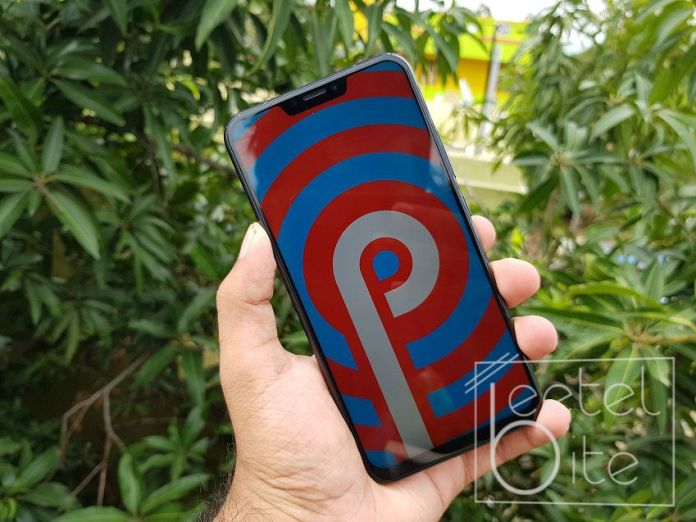
Android Pie
Android P brings tons of new features to the table.

The first variant of Android was released almost 10 years ago in 2008 with the HTC G1 Dream. Back then it was wobbly and full of bugs and lacked features, however, now the Android OS is just as competitive or even better than the iOS.

But what’s new and what's improved? In the move from Android 8 Oreo to Android 9 Pie, Google has introduced loads of small interface tweaks including a new way to navigate the interface.

Let's take a look at the changes that the Android Pie has bought upon us.

Aesthetics

Android is more functional and customizable now when it rose up to popularity a few years back. However, Google decides to keep its Pixel smartphones a little more conservative.

Android Pie brings back a little colour and some curves to the system. This makes the complete UI look softened. Like the Settings menu now has colourful icons. And the drop-down Quick Settings bar uses blue circles rather than plain icons in the Android Oreo.

Wellness

Nobody likes to be tutored around, However, stuff like the display-use is one thing you should always listen to. A new feature called Dashboard tracks your apps daily usage patterns and then present it in an easily readable pie graph of the apps you use.

It also tracks how many times you unlock your phone each day including how many notifications you receive and more.

Usage Limits

Want to track how much time you use on Instagram looking at cute photos of puppies or how much time you spend on youtube watching videos? The Android Pie tracks all that and it's timer resets at the end of the day. What's more is that you can set usage limit for the apps. Once that's done the app icon greys out and you can't access it anymore.

This can help you limit the time you spend on youtube or the time you spent playing your favourite mobile game.

Volume control

Android P Volume Control
The new Volume control defaults to Media Volume.

Press the volume buttons on an Android Oreo phone gives a popup that depends on the context of the application you are using. That all changes in Android Pie. Volume buttons will control media volume as standard.

The volume interface also hosts a button to switch between silent, normal and vibrate-only notification modes.

Night mode

Android Oreo has a great feature called Night Light, which takes the blue light out of the display as you get closer to bedtime. This makes it easier for your eyes at night, also helping those who have inconvenience in sleeping.

Wind Down in Android Pie takes this thing to another level. When you approach the night time, the display goes grayscale and the Do Not Disturb Mode is automatically activated.

Brightness control

Android Oreo has a fairly standard adaptive brightness control mode. Android Pie update makes Adaptive Brightness control a little more intelligent. It tracks what brightness control you used in what lighting and using that data it adapts the brightness control according to that.

Battery management

Android Pie makes the control of background battery consumption use more visible, with a mode called Adaptive Battery. This controls how much battery and App can consume before getting killed based on usage patterns of the user.

Copy and Paste

Copy and pasting get a big overall, a much-needed update in Android Pie. Long-pressing and dragging to select a phrase in an article or email brings a magnified version of what’s under your finger. This makes selecting the exact portion easier. This might seem like its taken straight from the iOS because it is.

Navigation

All the Android smartphones these days sport same navigation method. You have soft keys denoting the same functions, namely back, home and overview/recent apps button.

Android Pie changes this. The Android P sports an iPhone X looking home bar. Swiping up on it takes you to home. Swiping a little right opens the recent app and swiping and holding on it takes you through all your open apps.

Also, the back buttons appear whenever it is needed depending on the context.

Recent apps

Android P Recents Menu
Android P has a completely revamped recents menu to adapt to the new Gesture based Navigation method.

In Android Oreo, the Recent Apps display is a 3D stack of cards with each card representing one app. With the new gesture-based theme of Android Pie, the new Recent Apps screen is much more consistent with the visual design of the system and seems less like the appendix at the back of a book. It’s cleaner and more useful.

It also features the same row of popular apps as the app drawer. and the rest of the open apps in the horizontally scrolling list of big cards.

How to install Android 9 Pie on your smartphone

Android Pie
Android 9 Pie embraces the notch

Google has finally released Android 9.0 Pie for the Google Pixel devices. The update should soon make it to the Android One devices like the Xiaomi Mi A2 and the Nokia 7 Plus. If you are wondering when you Samsung, Oppo or Xiaomi device will receive it, that solely depends on the OEMs and they might take some time as they have to get the latest version of Android and customise it. If you have a Google Pixel device, here's how you can get the Android 9 Pie update.

Before beginning any of these processes, make sure you take a complete backup of your smartphone.

OTA Update

One of the simplest ways to get a software update on any smartphone is via OTA (Over-the-Air). It makes the process simple, it is also usually safe and does not require a computer. The same method will work for the Google Pixel, OnePlus or any other device.

  • Open up the Settings app on your smartphone
  • Head over to About Phone>System Update
  • Tap on Check for Updates

If an update is available, you will be prompted and you can download and install the update easily. The whole process might take some time as the update itself will weigh over 1GB.

Flashing

In case you are excited about the Android 9 Pie and cannot wait for Google to push the OTA update, here's how you can flash the update on your Google Pixel device.

  • First, you will need to download the Factory Image of the latest version of Android for your smartphone.
  • Head over to Settings>About Phone and tap seven times on the Build Number
  • Now go to Developer Options in the Settings app
  • Here you have to enable USB debugging and OEM unlock
  • Now plugin your Pixel device to your PC using the USB Type-C cable
  • Fire up the command prompt on your PC
  • Boot your Pixel device into bootloader mode using the following command
    adb reboot bootloader
  • Once that is done, type the command
    fastboot flashing unlock
  • Your phone will now ask for confirmation where you have to select Yes using the volume buttons
  • In the Command Prompt, now type
    fastboot reboot
  • Extract the factory image files using 7zip
  • Now copy all those files and put them in the Android SDK>platform-tools folder. The folder will be in the C drive under Program Files (x86).
  • In that folder find a file which shows a gear logo also known as “Windows Batch File.” Open that file.
  • Now the installation process will start and make sure the device does not unplug during the process

You now have the latest iteration of Android up and running. Android 9 Pie will soon be available for Android One and OnePlus devices via an OTA update.

Here are the top 5 Android 9 Pie features

android, android 9, android p, android pie
Android 9 is officially named Android Pie

Google has finally released the latest iteration of Android, the Android 9 Pie. Yes, even the name is finalised and it's being called Android Pie. The new version of the operating system brings a ton of new features and improvements. Here are the top 5 features that Android Pie brings.

Notch Support

oneplus 6, notch
Smartphones like OnePlus 6 come with a notch up front

Android 9 Pie brings the notch support directly onto the operat9ing system. Though this will not affect normal users, it will help developers and smartphone manufacturers to optimise their apps and software. This will ultimately bring a better notch experience on the Android side of things.

Gesture Navigation

Android 9 Pie also brings gesture-based navigation support natively. Since the iPhone X launched, many smartphone manufacturers started bringing gesture-based navigation. Now that Google has added it to the operating system itself, it will work seamlessly. Gesture navigation will help OEMs to give even more screen real estate on the full-screen smartphones.

New Material Design

Android P Notifications

One change that is always expected with a new version of Android is the change in design. The Android 9 Pie comes with an all-new material design that looks and feels better than the previous UI in many manners. Now this change won't affect Samsung, Oppo, Vivo and other users as they use a custom UI. However, phones like the Google Pixel, Nokia 7 Plus and the Xiaomi Mi A2 will see these changes as they run on nearly stock Android.

New Multitasking

The recents app switcher menu has looked quite similar for past few years. With the Android 9 Pie, Google aims to bring a better multitasking experience by placing the apps next to one another horizontally just like iOS. This helps users to get a better glance at the apps and they can just swipe up to close an app.

Media Controls

In most of the Android version, at the time of adjusting volume users had to reach to the top of their smartphone screen. The Android 9 Pie tends to solve this problem by bringing the volume controller next to the volume rocker. It also brings more features like users can adjust volume for the connected Bluetooth devices, the media volume will be adjusted instead of ringer volume and much more.